· 8 min read
How to Automate Your Own Work With AI (and Trust It)

Most owners I talk to have handed a task to AI at least once. It did a decent job, so they tried it again the next week, and it missed badly. Now they don’t trust it with anything that matters, and they’re right not to. One good result tells you almost nothing.
To automate your own work with AI, treat it like any new process: see how the work really gets done, write it down, test it until it hits a standard, and only then let it run. In practice that’s six steps. Watch your work for a week. List every task. Have AI design a system for each one. Test each system ten times and keep the ones that score 8 out of 10. Save those as reusable skills. Then decide which ones run on a schedule and which ones wait for you.
I didn’t invent this sequence. Nick Saraev, who runs an AI growth agency, laid it out in a recent video about automating most of his own role in that business. I can’t verify his results, and you don’t need to take them on faith. The method holds up on its own. It matches how Anthropic, the company behind Claude, tells developers to test AI before relying on it, and it fits the EOS® tools most of my clients already use. Here’s how I’d run it in an owner-led company.
Step 1: Watch your work for a week
You know what you do. You don’t always know why you do it the way you do. Ask an owner to describe how they price a job and you’ll get the official version. Watch them do it and you’ll see the side check, the spreadsheet they open first and the customer they always call before quoting.
Saraev had Claude build a small tool that took a screenshot of his screen every five seconds for a week, shrank each image and logged what he was working on. A few times a day, Claude also asked him short questions: What are you working on? Why that? What systems do you need for it? His point was that showing the AI your work beats telling it, because you leave out context you don’t know you’re using.
Big companies have done a version of this for years. Task mining software from vendors like UiPath records screenshots and clicks on employees’ desktops to find work worth automating.
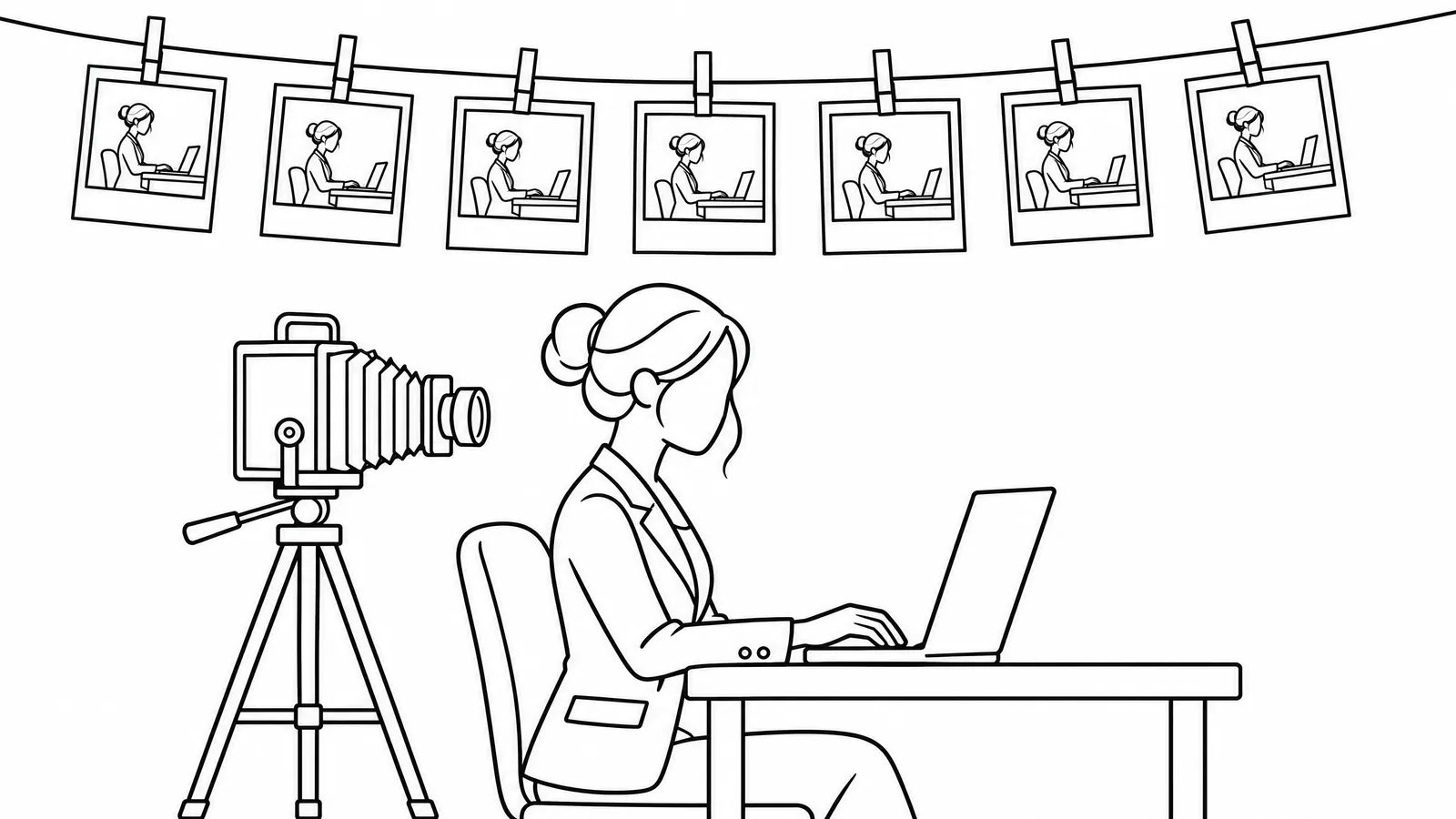
You don’t need to build a screen recorder to get most of the value. Two lighter options work:
- Check-ins. Set a timer for every 90 minutes for a week. When it goes off, dictate a 30-second answer to those same three questions into one running note.
- Your trail. Export a week of calendar, sent email and task list, the same starting point I use for Delegate and Elevate.
If you do record your screen, be careful. Screenshots catch client data, financials and passwords. Pause the capture during sensitive work, use a business AI plan and check its data settings, and delete the raw images once they’ve been summarized. Run it on yourself first. If you want to run it on employees, tell them in writing before you start and check your state’s rules. Some states, New York among them, require written notice of electronic monitoring.
Step 2: Turn what you saw into one task list
At the end of the week, have the AI turn the screenshots, check-ins or exports into a list of every task and output you touch. Saraev’s list for his agency included pulling lead lists, checking email addresses, writing cold email sequences, answering replies, booking calls, running sales calls and writing proposals, and it kept going from there.
Expect a long list. That’s the point. Most owners undercount the small recurring jobs, and those are often the easiest to hand off.
Then mark the tasks that face clients or need your judgment in the moment. Saraev aimed his automation at his work that didn’t face clients, and that’s the right first target.
Step 3: Hand the list to AI and let it interview you
Open a fresh conversation, paste in the list and say something like: “This is everything I do in a typical week. My goal is to automate as much of my work that doesn’t face clients as I can. Help me design a system for each task. If you’re missing context, ask me.”
Then answer its questions. Dictation helps here too. Saraev answered by voice and said the whole context dump took about an hour. Use the strongest model you have access to, with its deepest reasoning setting turned on. This step is planning, and every system that comes out of it inherits its mistakes.
Step 4: Test each system ten times before you trust it
This is the step most people skip, and it’s the one that matters most.
AI doesn’t give the same answer twice. Ask it to draft the same proposal on Monday and again on Thursday, and you can get one you’d send and one you’d be embarrassed by. Developers handle this with what they call evals: run the same task many times, grade every result and look at the average.
Here’s the plain version:
- Write down what a 10 looks like before you run anything. Treat it like a measurable on your Scorecard: specific enough that two people would grade the same output the same way.
- Run the task ten times, ideally on ten real past examples, like your last ten proposals or last ten intake forms.
- Grade every result yourself against the standard.
- Keep the systems that score 8 out of 10 or better. For the rest, show the AI what’s going wrong and what good looks like (“most of these open with a generic line; here are three openers that worked”), give it real examples and templates, and run the test again.
Saraev said this was the most time-consuming part of the whole project, far more than the screen capture. Plan for real hours here. Two habits save time. First, test three or four different systems at once, so the AI fixes them side by side instead of one after another. He said that turned a week of testing into a day. Second, within a single system, change one thing at a time between test runs, or you won’t know which fix helped.
Keep in mind what 8 out of 10 means. A task that runs every weekday at 80 percent will hand you a bad result about once a week. That’s good enough to keep. It isn’t good enough to send without looking, which is where step 6 comes in.

Step 5: Save what passes as a skill
A system that passes its test is a documented process for an agent. Claude calls these skills: a saved set of instructions, examples and templates it pulls in when the task comes up. Most AI tools have some way to save standing instructions like this.
This is the EOS Three-Step Process Documenter applied to AI. Document the steps that matter, package them so they’re easy to find, and get them Followed By All. I covered the human version in How to Clear a Bottleneck.
Packaging matters because skills can be shared. On Claude’s Team and Enterprise plans, an owner can push a skill to everyone in the company, and people can use it in the regular chat window or in Claude Cowork without touching code. Your office manager gets the proposal system you spent a week testing without rebuilding it.
Give every skill one owner on your Accountability Chart. That person reviews its output, keeps its examples current, and reruns the ten-run test when the process changes or the AI model gets updated. A skill nobody owns drifts, the same way an unowned process does.
Step 6: Decide what runs on a schedule and what waits for you
For each skill, ask one question: does it make sense for this to run on its own, without me starting it?
Some skills pass. Saraev has Claude draft a morning update for each client: what he’s working on, what got done yesterday and what’s blocking him. He reads each draft and hits send. Recurring, low-stakes work like that fits a schedule. Tools like Claude Cowork can run tasks daily or weekly, and on paid plans many of them run in the cloud even when your laptop is closed.
Others don’t. Building a client deliverable or writing a full sales campaign still needs a person steering. Keep those as skills you run when you need them, and stay in the loop.
Notice that even the scheduled update lands as a draft. That’s the right default. Remember the 80 percent math: scheduled work should end with a person approving it until the skill has earned more trust. The four questions in Delegate and Elevate help here, especially the last one: what happens if it’s wrong? The higher the cost of a miss, the closer a person stays to the output.
What’s left is the work only you can do
Saraev said that by the end, 80 to 90 of his tasks in that business ran without him, and he was left with five or six. Most of those are conversations: talking with clients, understanding their problems and deciding what to build next.
Your numbers may look nothing like his. The shape is still right. What stays with you is relationship and judgment work, the top-left quadrant of Delegate and Elevate. And the usual warning applies: freed time doesn’t stay free. Block it on your calendar before email takes it back. I wrote about why in Your Calendar Is a Management Decision.
Start with three tasks this quarter
Don’t try to automate 90 tasks at once. Pick three recurring tasks from your list. Get each one to 8 out of 10, save it as a skill, give it an owner, and decide whether it runs on a schedule. Make that a Rock, one of your leadership team’s 90-day priorities. Next quarter, pick three more.
If you want help running this with your leadership team in Oregon, Southwest Washington or Seattle, that’s the work I do through AI integration and EOS® implementation.